 ava-code
In the first post I described how a Raspberry Pi 5 became a home server for bots, a media library, and this blog. More projects have moved in since then: it's now 7 compose stacks and 22 containers. To see how it was doing, I had to SSH in and run htop. I wanted to open a page and see everything at once: temperature, fan, load, memory, network. And I wanted it to look like a terminal from a hacker movie.
That's how pi-monitor came about. It lives at pi.ava-code.com, and you can open it in the next tab right now.
What's on it
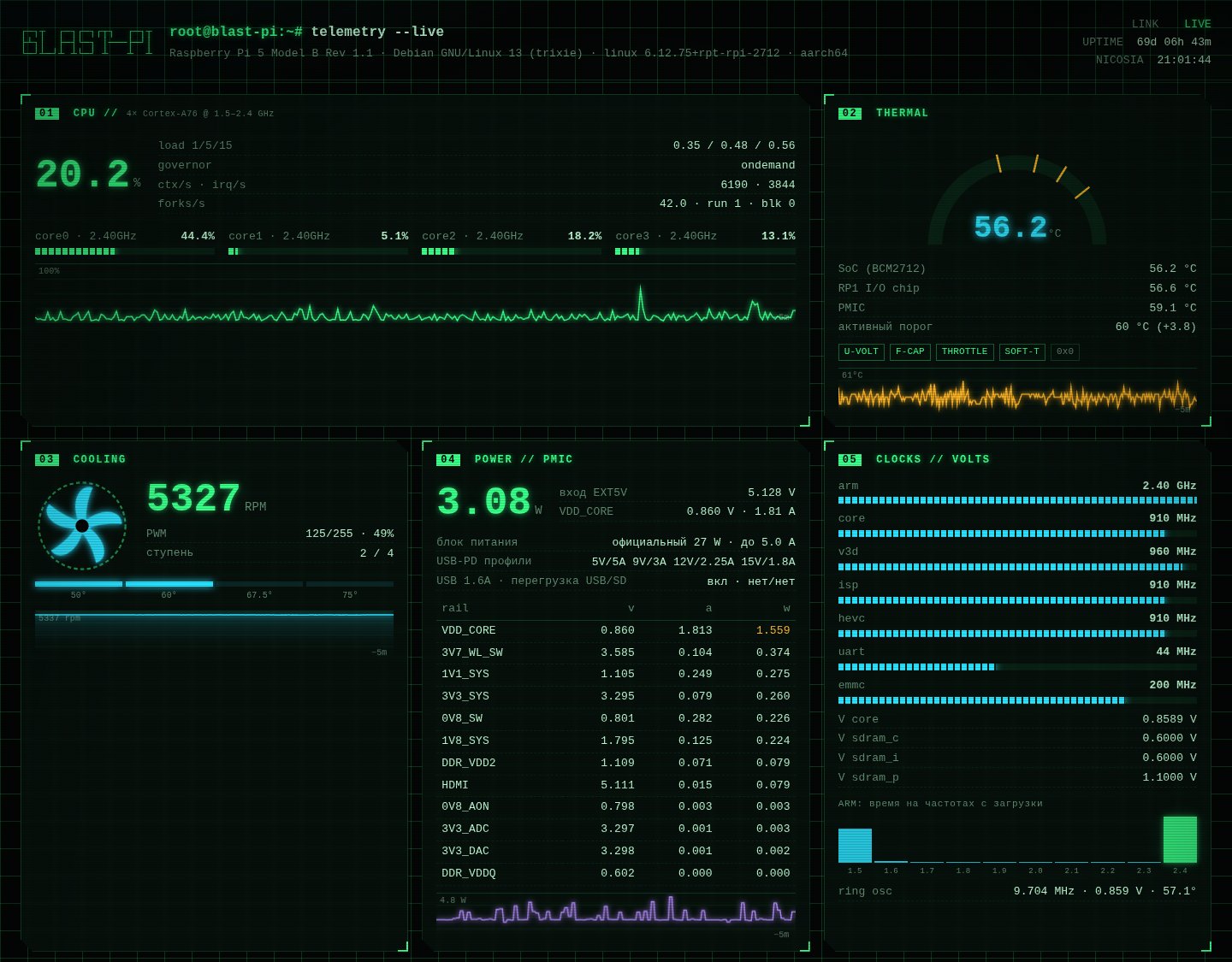
Almost everything you can reach without root:
- CPU: load and frequency of every core, load average, context switches and interrupts per second
- temperatures: the SoC, the RP1 I/O chip, and the power controller, plus throttling and under-voltage flags
- fan: RPM, PWM, and the current cooling step
- power: 14 PMIC rails with voltage, current, and power, and everything the firmware learned about the power supply
- clocks and voltages of the chip's blocks, plus how much time the CPU has spent at each frequency
- GPU: V3D load per queue
- memory: apps, cache, zram, page faults, swap
- disks, network, Wi-Fi, and TCP: throughput, errors, retransmits
- Cloudflare tunnels: requests and response codes for every site on the Pi
- processes and containers, grouped by stack, with uptime
Everything updates once a second, and the charts show the last five minutes.
Looking at the numbers, I learned a few things about my Pi:
- The CPU almost never sits at in-between frequencies. Since boot it has spent 56% of the time at the maximum 2.4 GHz and 41% at the minimum 1.5 GHz, and everything in between adds up to less than 4%. The
ondemandgovernor works on a "rest or go all out" basis. - zram compresses swapped-out memory almost 7×: 216 MB take up 31 MB of RAM.
- According to the PMIC, the board itself, with all 22 containers, draws 2–5 W. The fan meanwhile spins at 5300 RPM, half of its power.
- The power supply is detected as the official 27 W one and offers four USB-PD profiles: 5 V/5 A, 9 V/3 A, 12 V/2.25 A, and 15 V/1.8 A. The Pi, of course, takes five volts.
How it's put together
Python with zero dependencies, just the standard library. One thread reads /proc, /sys, and cgroup v2 once a second, and every three seconds it also asks vcgencmd, iw, and the cloudflared metrics. The finished snapshot goes out to every open tab over Server-Sent Events, so the load doesn't depend on the number of viewers: a hundred people look at one and the same sample. The monitor itself takes 3–5% of one core and about 30 MB of memory.
The container runs in the host's process, network, and cgroup namespaces (pid: host, network_mode: host, cgroup: host), so /proc and /sys/fs/cgroup inside it describe the whole machine. At the same time it runs as a regular user, with no capabilities and a read-only filesystem. It doesn't need to change anything, only read.
Where everything comes from:
| What | Where from |
|---|---|
| CPU load, processes | /proc/stat, /proc/<pid>/stat |
| temperatures, fan | /sys/class/thermal, /sys/class/hwmon |
| power rails, clocks, throttling | vcgencmd pmic_read_adc, measure_clock, get_throttled |
| power supply | device tree, the /chosen/power node |
| GPU | the V3D driver's gpu_stats |
| containers | cgroup system.slice/docker-*.scope |
| Wi-Fi | /proc/net/wireless and iw |
| tunnels | cloudflared's Prometheus metrics |
My favourite part is the containers. The monitor has no access to docker.sock: that's effectively root on the host, and I didn't want to hand it to a public page. So a container's CPU and I/O come from its cgroup, and the monitor works out which stack it belongs to from its mount points. Compose volumes are named <project>_<volume>, and bind mounts point into ~/Projects/<project>/. If there's neither, the container is matched with its stack neighbours by network routes.
What I deliberately don't collect
The page is public, so there's nothing on it that would help find the Pi on the network or harm it: no IP addresses, no SSID or MAC, no serial numbers of the board or the SD card. Processes show only the program name, without command-line arguments: arguments sometimes carry tokens and passwords.
Things that bit me
Docker hides /sys/firmware. Inside the container the board model came out as an empty string. /proc/device-tree is a link into /sys/firmware/devicetree, and Docker masks that directory. I had to pass the needed device tree files through one by one: the board model and the power supply details.
A memory limit that isn't there. I gave the container mem_limit: 128m, and Docker politely replied: Your kernel does not support memory limit capabilities or the cgroup is not mounted. Limitation discarded. On the Raspberry Pi the cgroup memory controller is switched off right in the kernel command line, which has cgroup_disable=memory. 30 MB is plenty for the monitor, so it's fine, but it's worth remembering for any container on a Pi. The CPU limit does work.
Parentheses in a process name. A /proc/<pid>/stat line looks like this: 42 (tmux: (server)) S .... The process name is in parentheses, and it can contain parentheses itself. At first the name was taken between the last opening and the last closing parenthesis, which gave server). The right way is from the first ( to the last ). A test caught the bug before it ever reached the page.
Cloudflare's cache. Cloudflare caches JS and CSS, but not HTML. After an update the page could arrive new and its script old, straight from the cache. Now the links to the script and the styles carry a hash of their contents, and the server fills it into the HTML as it serves it.
The deploy. I built all of this, like everything else here, together with Claude Code. It handled the code, the tests, and even the screenshots on its own, but at launch it ran into its own limits. The automatic permission filter treated docker compose up as a production deploy and creating a DNS record as a domain change, and let neither through. So the agent bundled everything into a script for me to run. The script added the site to the blog's shared tunnel, but that tunnel's config lives in /etc/cloudflared and can only be edited with sudo, and when run through ! inside Claude Code, sudo can't ask for a password: there's no terminal. In the end I explicitly gave the agent full permission, and it did what my two other sites do: a separate named tunnel, with cloudflared as a container right in the monitor's stack. No sudo needed at all, and the stack is self-contained: bring up compose, and the site comes up with it.
Bots
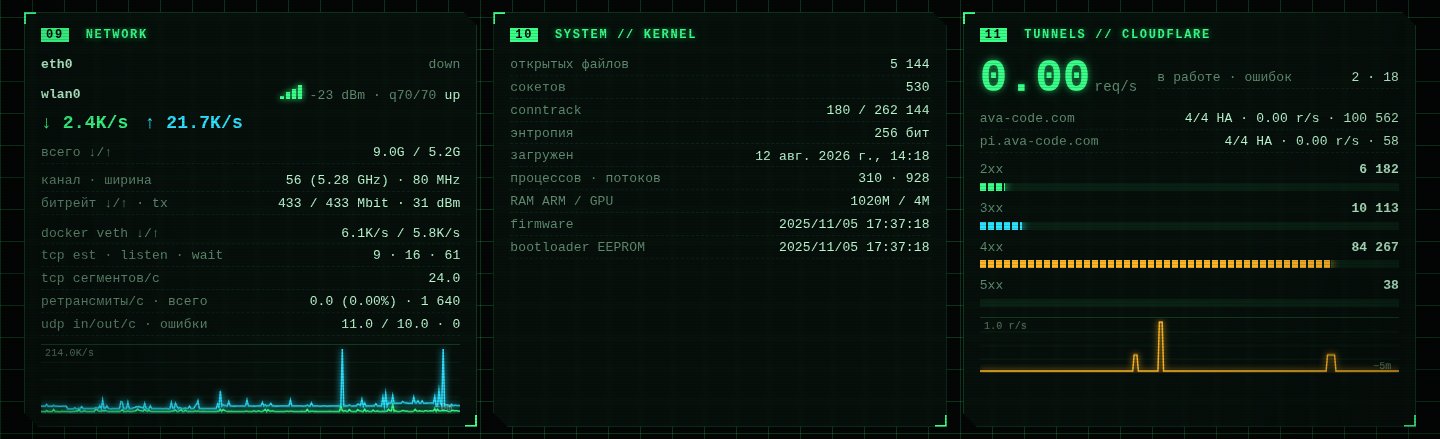
The tunnels panel turned out to be the biggest surprise. Of the ~100 thousand requests the blog's tunnel has received since August, when it was last restarted, 84 thousand ended in a 404. Those aren't readers mistyping a URL, they're scanners. I looked at the nginx logs, and here are the most frequent paths:
335  /.env
303  /wp-admin/install.php
241  /.env.local
192  /@fs/.env
189  /.env.production
157  /.env.development
115  /.git/config
They're after forgotten files with secrets, half-installed WordPress, an exposed .git, and the Vite dev server, which serves files under /@fs/. This is Django, and .env and .git aren't served, so let them look. But the number is sobering: five out of six requests to the blog end in a 404.
What could be better
Every open tab receives about 8.6 KB per second, roughly 30 MB an hour. Nothing for a computer, but not nothing for a phone on roaming. Most of the snapshot doesn't change from one second to the next, so there's room to squeeze.
Like everything here, it's vibe-coded: I set the tasks and checked the results, Claude Code wrote it. Open pi.ava-code.com and see what the Pi is up to right now. And if there's a spike on the tunnel chart, it might be you.
Comments
No comments yet. Be the first.
Sign in or register to leave a comment.